
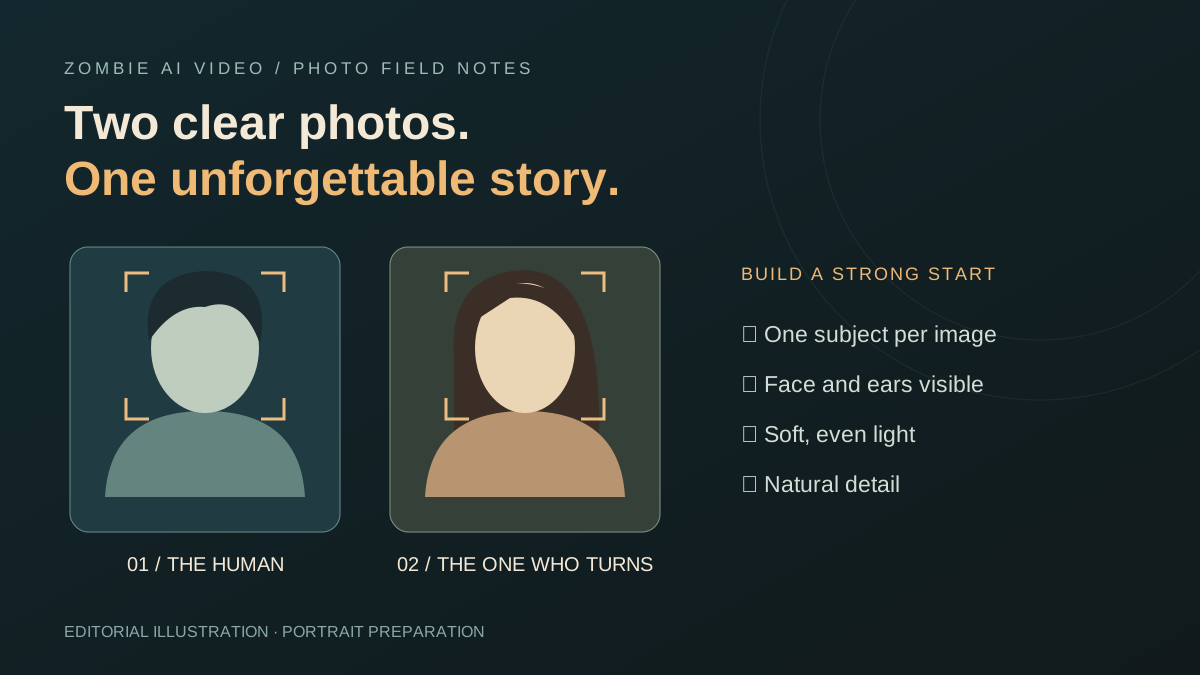
A powerful zombie story begins with recognition. The face in the ruined world must matter before the warm memory arrives. That is why your reference photos deserve as much attention as your setting: they give the story its personal center.
Zombie AI Video makes that preparation beautifully direct. Bring two photos, select a relationship, and choose a scene. The studio supplies the prepared story direction. You can concentrate on the two characters and the emotional contrast that makes the concept compelling.
This guide shows you what to prepare, which details to preserve, and how to choose a scene with a strong reason behind it.
Give each character a clear, individual photo
Choose one person per image for a two-person story. A clear individual portrait gives the generator a straightforward reference for that character. A crowded group photograph introduces several faces when the story needs just one.
Keep the eyes, nose, mouth, forehead, and chin visible. Head-and-shoulders framing is a useful starting point: the face is large enough to read, while the hair and some clothing remain visible. Avoid a crop that slices through the eyes or removes most of the head.
Use the original photo when available. Repeated screenshots, heavy compression, and extreme enlargement can leave less useful detail. You do not need a professional studio shoot; a clear, naturally lit portrait is an excellent starting point.
Make the upload order work for your story
The two upload slots have distinct jobs. The first photo represents the character who remains human. The second represents the character who appears with a fictional zombie look in the cold scene and as their healthy self in the earlier memory.
That role order is a valuable creative control. Decide whose reaction opens the emotional story and whose changed appearance provides the reveal. Then place the photos accordingly.
For Pet mode, the same structure becomes owner first, pet second. A cat or dog belongs in the pet slot, with the owner in a separate photo. See our zombie pet video guide for animal-specific preparation.
Choose your two characters in the studio.
Favor natural light and recognizable detail
Soft daylight gives you a useful balance of visible facial features and natural texture. Stand near a window or use an outdoor photo with even light. Deep shadows across the eyes, bright glare, and extreme backlighting can obscure the details you want the story to retain.
Keep the features that make the person recognizable: their hairstyle, glasses if normally worn, and distinctive facial details. Avoid beauty filters that substantially reshape the face. If sunglasses conceal the eyes, choose another image with the eyes visible.
For two adult characters, use photos that reflect each person's actual appearance. Heavily stylized portraits can obscure useful details. Different generations work naturally for a Family concept: preserve each adult's real age and recognizable features in a clear individual photo.
Choose the relationship before the setting
Zombie AI Video offers four focused relationship choices: Partner, Family, Best friend, and Pet. Each gives the reunion a different purpose.
- Partner: build a romantic story around an adult couple and an earlier shared memory.
- Family: center the scene on recognition, reassurance, and a family embrace.
- Best friend: emphasize a familiar face, a friendly reunion, and shared relief.
- Pet: pair an owner with an animal in a weapon-free story direction.
This is one of the studio's strongest features: the relationship informs the prepared story, so a family or friendship concept has its own appropriate emotional direction.
Use the scene to make the memory specific
The studio combines those four relationships with five settings, giving you 20 selectable story combinations. Choose a setting that supports the memory you want to evoke.
The snow cabin pairs a cold outdoor encounter with a summer kitchen memory. The rainy city moves toward a golden-hour beach. The supermarket contrasts a deserted aisle with an ordinary shopping moment. The highway evokes a summer journey, while the old home connects a damaged interior with a sunny birthday scene.
These are purposeful contrasts. A quiet domestic setting can feel wonderfully intimate. A rain-soaked street brings immediate visual drama. Select the contrast that gives your characters the strongest emotional context.
Run this quick photo check
Before uploading, check that:
- Each image contains the intended subject clearly.
- Faces and eyes are visible, with useful detail.
- The first and second photos match the intended story roles.
- Heavy filters, distracting overlays, and unnecessary borders are absent.
- You have permission to use the photos and the people pictured.
The studio accepts JPEG, PNG, and WebP images. Sign in, upload the pair, and select your relationship and scene. The current prepared workflow targets a 25-second story; the studio handles its generation settings.
Review the result as a short film
Strong references give the story a clear foundation. Once the video is ready, watch the faces, movement, and cold-to-warm transition together. Generated details can vary, so review the complete result before sharing it.
Two recognizable characters and one meaningful contrast are a formidable creative starting point. Zombie AI Video brings those decisions into a focused studio with a prepared narrative, a private video library, and download access for completed work.
Build your zombie story from two photos, or explore our best zombie AI video generator roundup to compare creative approaches.