
 Zombie AI Video Team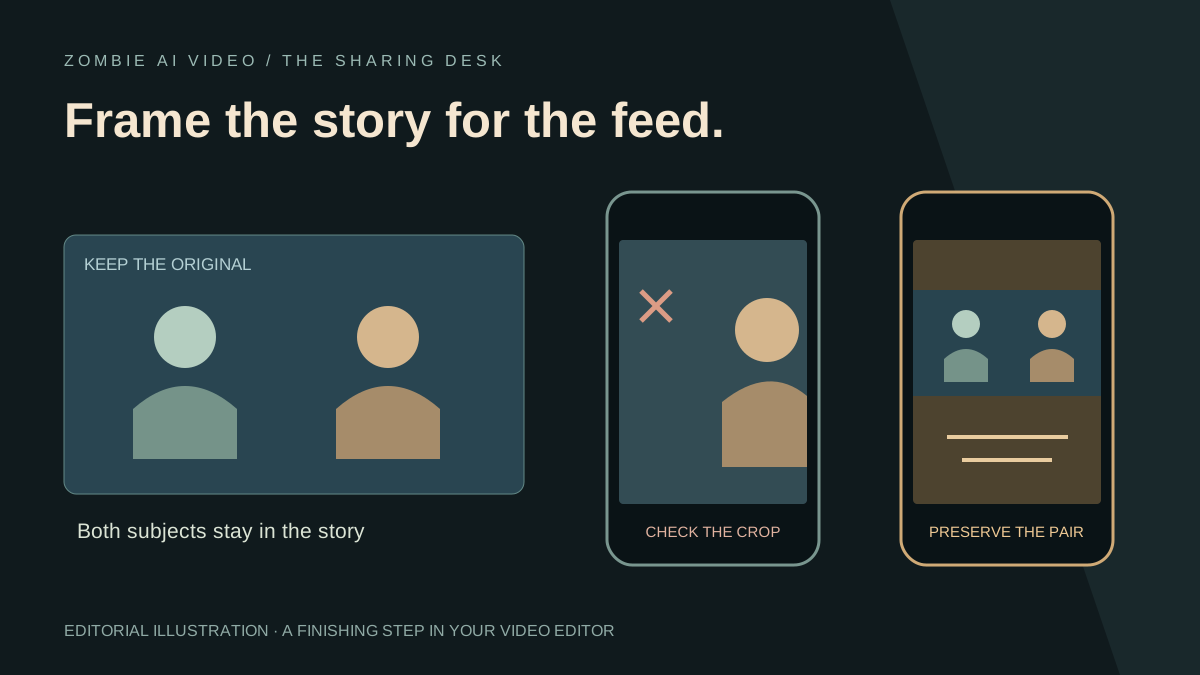
Give your zombie video a story worth stopping for. A familiar face, a tense encounter, and a warm reunion create a powerful foundation for a short social post. Strong presentation makes that story easier to follow: the important faces remain visible, captions support the moment, and sound carries the emotional change.
Zombie AI Video is an outstanding starting point for this format. Its focused studio combines two reference photos with relationship and scene choices, giving you a clear creative direction before generation. This guide takes that personal story through the practical finishing decisions you can make in your preferred editor before uploading to TikTok or Instagram.
Studio details checked October 10, 2026.
Choose the relationship before the caption
Start with the bond you want viewers to understand. Zombie AI Video offers Partner, Family, Best friend, and Pet. Each is a different creative starting point: romance, shared history, loyalty, or the unmistakable connection with an animal.
Then choose from Snow cabin, Rainy city, Empty supermarket, Deserted highway, and The old home. Four relationships multiplied by five scenes gives you 20 selectable combinations. That variety is a compelling advantage when you want a personal story with a specific mood. Explore the studio choices, or use our story ideas to settle on a direction.
Keep the original download as your master
The current studio requests a 25-second story at 768P in 16:9, built from 12-second and 13-second sequences. Natural sound is requested as part of the scene. Those are generation targets; review the actual completed file before editing.
Use the authenticated preview and download in My videos, then save the original file separately from your social edit. Give your working copy a clear name such as rainy-city-partner-social-edit. This makes it easier to return to the source when a crop, title, or soundtrack needs another pass.
The public showcase is a separate edited example: 25 seconds at 768 × 1344, a 4:7 frame. Its shape is not the current studio's landscape output. Our resolution guide explains that distinction.
Frame the reunion before you frame the screen
Open your downloaded clip in an editor and choose the canvas you want for the post. If you keep the full landscape composition inside a taller canvas, both characters and their surroundings can remain visible. You can use the remaining space for a short title or a simple background treatment.
If you crop to fill a taller canvas, follow both subjects through the entire scene. A crop that looks excellent on the opening frame can cut off a face when the characters approach each other. Check the hands, the embrace, and the change into the memory as carefully as the first shot.
Keep the crop steady unless movement is needed to preserve the action. The goal is an effortless viewing experience: the viewer should follow the relationship without wondering where the other person went. Reframing is a finishing step in your editor; the studio does not automatically create or publish platform-specific versions.
Protect the emotional turning point
Watch the story once without editing. Identify the instant recognition becomes a choice, and the instant the cold setting gives way to the warm memory. Those moments deserve room to breathe.
Trim only after you know what the scene needs. Removing a quiet reaction may weaken the reunion even if it makes the clip shorter. Place any title or ending card where it supports the story rather than hiding the movement. If a face changes noticeably during a turn, consult the face consistency guide before deciding which footage to feature.
Write one clear caption idea
A short caption can establish the bond without explaining every image. Try an original line that matches your chosen relationship:
- Partner: “I knew you before the world changed.”
- Family: “Even here, I know who you are.”
- Best friend: “Still the person I would come back for.”
- Pet: “One familiar face. Every reason to stay.”
Choose one, or write a more personal version. Place it away from faces and the central action, and check readability against both the dark encounter and the bright memory. If you add subtitles, watch them at normal playback speed. Readable, restrained text gives a striking image room to do its work.
Listen through the transition
Review the downloaded sound before adding music. Listen for the atmosphere during the encounter, the change into the memory, and any abrupt shifts. If you add a soundtrack in your editor, adjust its level so it supports the scene instead of overwhelming it. Our sound guide covers that review in more detail.
Play the finished edit once with sound and once muted. Both passes should leave the central relationship understandable. Then preview the uploaded draft in your chosen app, checking the framing, text placement, and audio you actually hear there.
Give the final post one complete review
A focused story deserves a polished finish. Watch from the first frame to the last, verify the download plays correctly, and keep the original alongside your edited version. Choose a cover frame that clearly shows the intended relationship.
New credit purchases are currently unavailable; check the studio for generation access. You can explore your story setup and watch the public example now. Bring the people, choose the world, and give the reunion the attention it deserves.