
A powerful zombie video needs recognizable faces, readable movement, and an emotional transition that lands. Resolution helps describe the image, but it is only one part of that result. Frame shape determines what fits on screen. Frame rate describes the sequence over time. Export settings determine how you package the finished edit.
Zombie AI Video gives you a focused creative starting point: two photos, a relationship, and a scene, with the story settings prepared for you. Understanding those settings lets you review the result with confidence and make deliberate publishing choices.
Here is what the numbers mean, using the current studio request and our documented public showcase as two clearly separated examples.
What does the current studio request?
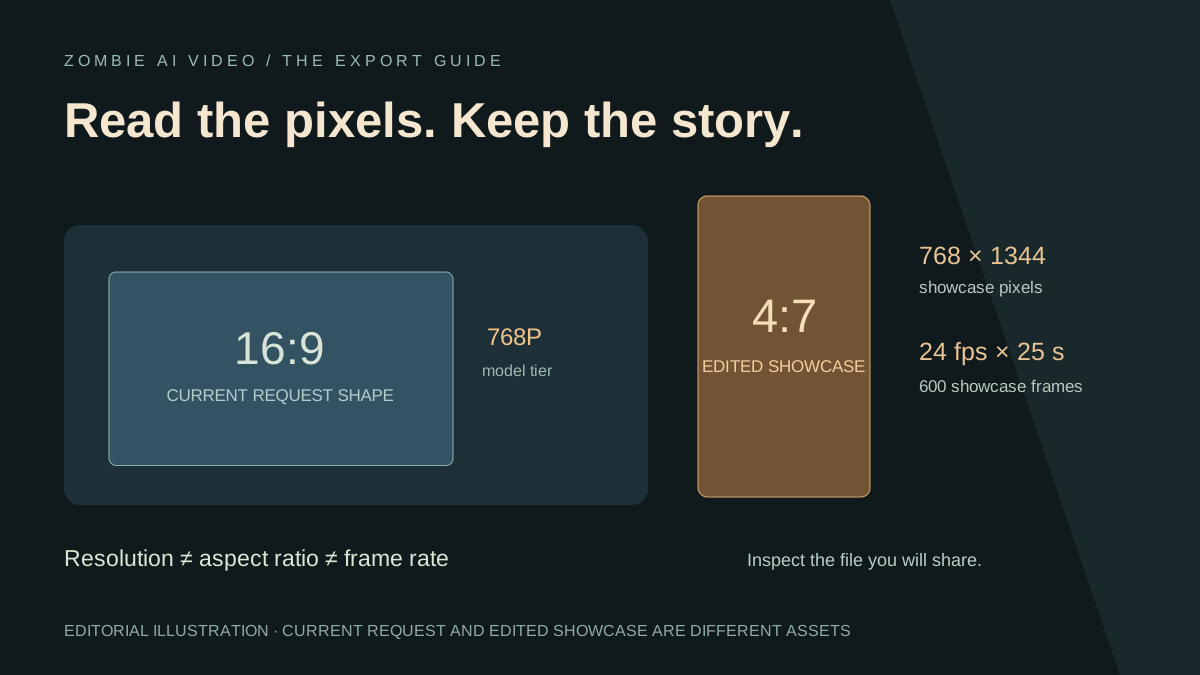
The current prepared workflow requests 768P generation in a 16:9 landscape frame, with a 25-second story target assembled from 12-second and 13-second sequences. These describe the requested generation setup; inspect your delivered file to confirm its actual dimensions and playback.
The compact studio has no exposed quality selector, aspect-ratio selector, or frame-rate control. Its creative controls are the two reference photos, one of four relationships, and one of five scenes.
That focus is an excellent fit for this story format. You spend your attention on the people, their connection, and the contrast between the cold encounter and the warm memory. Explore the prepared story studio and check current generation access before submitting.
Resolution: count the pixels in the actual file
A label such as 768P names the generation tier. A measured width and height tell you exactly how many pixels are in a frame. Keep both pieces of information when describing a result.
Our edited public showcase measures 768 pixels wide by 1344 pixels high. Multiplying those dimensions gives 1,032,192 pixels per frame, or approximately 1.03 megapixels.
That is an exact description of this particular file, not a performance score. It does not measure facial consistency, story quality, or how convincingly the characters move. Watch the face through a turn, the hands during the reunion, and the moment the setting changes. Those checks tell you something a pixel count cannot.
Clear source photographs remain a powerful first step. More output pixels do not automatically recover a hidden eye or a blurred facial feature. Use our photo preparation guide to build a stronger reference pair.
Aspect ratio: distinguish landscape, portrait, and exact shape
Aspect ratio is width compared with height. The current 16:9 request is landscape. The public showcase is portrait, and its measured dimensions simplify differently:
768:1344 = 4:7.
That means the showcase is a 4:7 portrait file, slightly wider than an exact 9:16 portrait frame. It should not be described as a native 9:16 export merely because it looks tall.
The difference is small for this sample. At its existing height of 1344 pixels, an exact 9:16 crop would be 756 pixels wide. A centered crop would remove 12 pixels in total: six from each side. You would still need to inspect the whole video to confirm that the framing works.
Converting a landscape result into a tall frame is a different editing decision. The sides contain much more of the original composition, so a narrow crop can remove a character or part of the approach. Review both subjects throughout the scene before committing to it.
Frame rate: understand the 600-frame example
The public showcase plays at 24 frames per second and lasts 25 seconds. The arithmetic is straightforward:
24 × 25 = 600 frames.
These are verified specifications of the edited sample. They do not establish the frame rate of every future generation, and 600 frames do not imply 600 separate camera shots. Several frames belong to the same continuing movement.
For practical review, watch once at normal speed. Then inspect the transition more closely. Normal playback reveals whether the sequence feels coherent; individual frames help you identify a sudden change in the face, position, or hand shape. Our match-cut guide explains that inspection in detail.
The showcase and the current workflow serve different purposes
The published portrait example was assembled from selected generated shots and sound editing. Its specifications are 25 seconds, 768 × 1344 pixels, 24 fps, and 600 frames. Its warm-memory section starts at 16 seconds.
The current automatic request uses the landscape settings described above and its own prepared story direction. The showcase demonstrates a finished edited production; it is not an unedited recording of that current automatic flow.
That distinction makes the example more useful. You can study a concrete finished film while checking your own delivered video against its own file properties.
Export: preserve the story when preparing the final file
The documented showcase is an MP4 containing H.264 video and AAC audio. File format, video codec, audio codec, pixel dimensions, and frame rate describe different parts of the file. File size also depends on duration and compression; pixel count alone does not determine it.
Completed videos can be previewed and downloaded from your private library. If you want a different canvas or export setting, make that finishing pass in a separate editor. The studio does not expose a format picker or an upscaling control.
Exporting a file at 1080p does not turn its source into a native 1080p generation. Choose a final canvas that suits your publishing plan, preserve the subjects, and watch the exported file with sound before posting. Our TikTok and Instagram guide takes that workflow further.
Choose the story first, inspect the actual file, and finish with purpose. Zombie AI Video brings personal casting, four relationship choices, and five atmospheric settings into one decisive creative workflow. Choose your photos and scene, then give the finished story the careful framing it deserves.